

 Home
Home FAQs
FAQs Privacy
 Contact
 Get Started
SimpleFIN Bridge Integration
Securely connect SimpleFIN Bridge to your financial institutions and authorize access for EZWorth to place balance updates directly into your spreadsheet.
What is SimpleFIN Bridge?
SimpleFIN Bridge is a third-party utility that connects securely to your financial institutions and provides a secure, read-only data service used by EZWorth. Your credentials stay safely with SimpleFIN and account balances from your financial institutions are queried on-demand, when EZWorth builds your encrypted spreadsheets.
1Create a SimpleFIN Account
To begin, create a SimpleFIN Bridge account:
- Go to the SimpleFIN Bridge website at bridge.simplefin.org.
- Click Get Started and enter your email address.
2Verify Email & Log In
Check your email inbox and:
- Locate the verification / login email from SimpleFIN.
- Click the login link in the email to log into your account dashboard.
3Subscribe & Link Accounts
Link to your financial institutions:
- Subscription Required: You will need a SimpleFIN Bridge subscription to link financial institutions.
- Once subscribed, navigate to the Financial Institutions section and click New Connection.
- Search for an institution (e.g. Chase, Vanguard, Fidelity) and complete the SimpleFIN linking workflow.
4Connecting EZWorth and SimpleFIN
When one or more of your accounts are linked to SimpleFIN, make an app connection token for EZWorth:
- From your SimpleFIN My Accounts page, scroll down to the Apps section.
- Click New App Connection.
- Choose an easily identifiable connection Name / Description (e.g.
EZWorth). - Click Create Setup Token.
- Copy the token immediately. Setup tokens are only for one-time use and expire promptly.
5Get Your EZWorth Starter Spreadsheet
Provide the setup token to EZWorth and make your personal Excel workbook:
- Go to the EZWorth Dashboard.
- Locate the Get a Starter Spreadsheet form.
- Paste the copied Setup Token into the SimpleFIN Bridge API Setup Token field.
- Enter a secure password for your spreadsheet and click Generate Spreadsheet.
- After a few seconds, your starter spreadsheet will download, pre-loaded with your accounts, category templates, and sample manual accounts to get you underway with EZWorth.
_Config tab of your EZWorth spreadsheet, keeping all of your access credentials exclusively in your control.
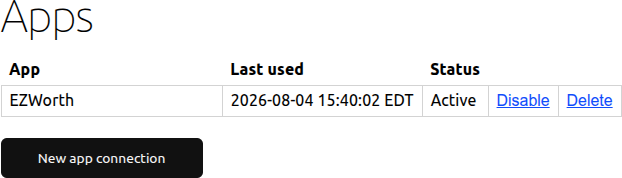
Even though EZWorth does not store the SimpleFIN access URL, you can suspend or revoke access within SimpleFIN. Referring to the screenshot, you can click Disable to temporarily suspend or Delete to permanently revoke access.
Proceed to Workbook Configuration
With your new, personal EZWorth Excel workbook in hand, proceed to the Workbook Configuration Guide to perform one-time preference settings and begin your on-going "Net Worth Update" refresh loop with EZWorth.